
Listen before editing.
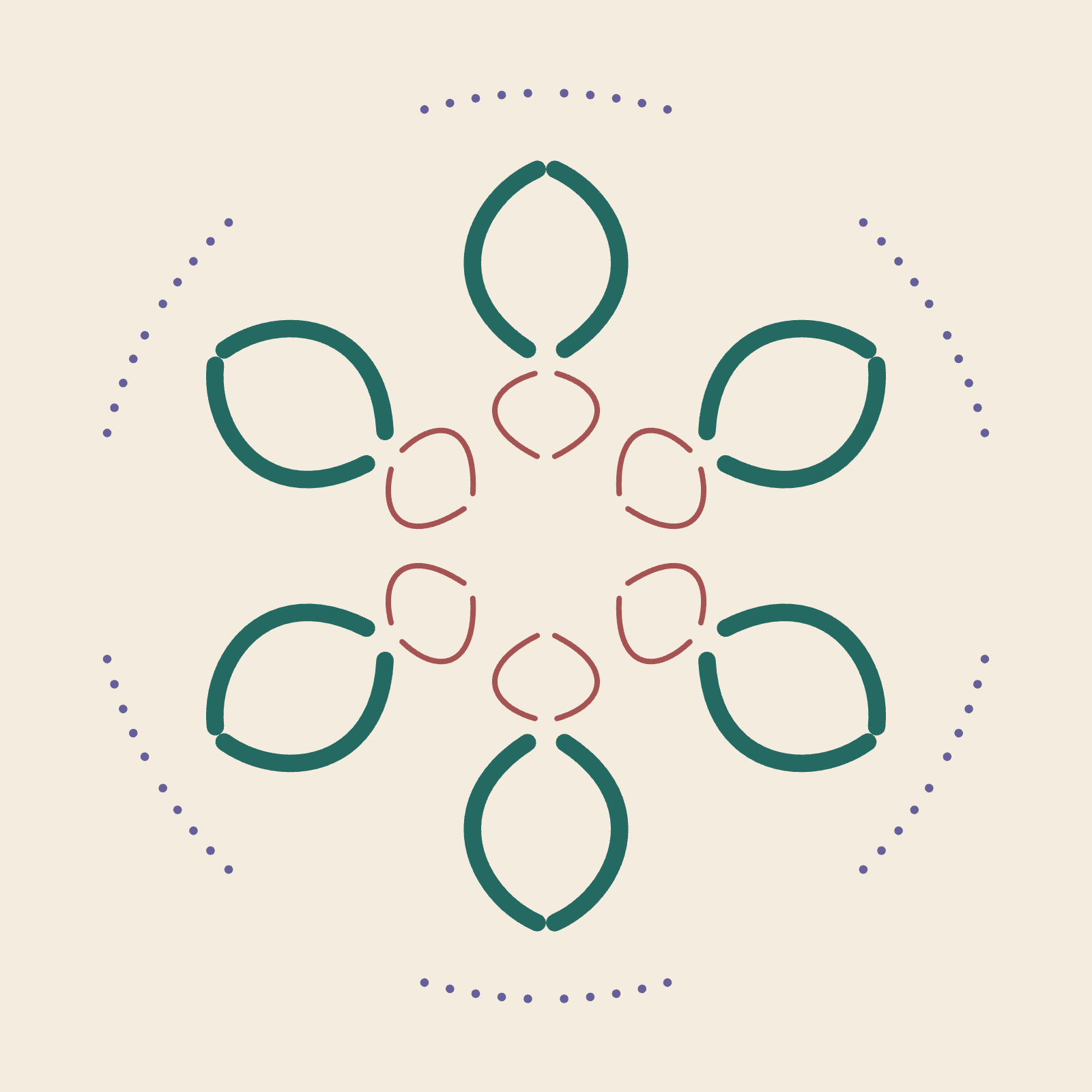
Look at the image’s separated layers while playing Spare. Then select Lift and play it from the beginning. Let the green band be a visual landmark while you listen for Pulse and Snap. Does the added Tick detail suit the dots around the outside, or does it pull attention away from the image?
Listen to the finished clips.
Both use 100 BPM and the same 35% Volume setting. Lift adds Tick on steps 3 and 11; the extra hits can make it feel fuller.
Selected: Spare. Each file is 9.9 seconds: four repeats plus a 0.3-second ending tail. Changing versions pauses and resets the player. Sound starts with its Play control. The reference player and practice loop have separate controls; pause one before starting the other.
There is no required emotional response. Both clips are original synth patterns made for this project. They contain no recorded music or third-party samples. The two versions keep the same Volume setting; extra hits can still change how full or loud a passage feels.
Read the two finished grids.
Spare · 6 hits
Lift · 8 hits
Every beat has four little steps. In these loops Pulse marks the starts of beats 1 and 3, and Snap marks beats 2 and 4. Spare adds Tick halfway through beats 2 and 4. Lift adds the same Tick position halfway through beats 1 and 3 as well. The main landmarks do not move.
Make both versions in one practice loop.
- Rebuild the base. The workspace below opens Spare. To build it yourself, choose Clear, set Tempo to 100 BPM and Volume to 35%, and keep all three sounds unmuted. Switch on Pulse 1 and 9, Snap 5 and 13, and Tick 7 and 15.
- Keep Spare. Play at least two repeats, then pause. Download its WAV and editable project file before changing it. The editor uses the same generic download names each time; give your copies different names, such as pattern-spare and pattern-lift, so you can recognise them.
- Add two details. Turn Tick 3 and Tick 11 on. Keep every other step and setting the same. Play again with the same image in view. You now have Lift.
- Compare, then keep Lift. Pause before downloading its WAV and project. Undo twice removes the two added hits; Redo twice returns them. Importing a supplied project file is a different history step, so its Undo sequence is different from these two manual edits.
A busier draft can also be useful. Try adding every other Tick step, then compare that density with these two versions. If the detail hides the landmarks you wanted, Undo the added hits. The aim is to make a choice you can explain, rather than always filling more cells.
Know what is in the clip.
At 100 BPM a sixteen-step repeat lasts 2.4 seconds. WAV export records four repeats, then adds 0.3 seconds for the last sound to finish: 9.9 seconds in total. It is a playable audio clip with an ending tail, rather than a seamless-loop guarantee. It does not include your image.
The PNG, WAV and editable project are separate outputs. A rhythm project restores the grid and settings; a WAV cannot. Downloading keeps these references for another visit, while the practice editor’s changes last only in this open page.
Choose a version for your picture.
Return to the drawing project if you want a different balance of broad marks and small details. Keep your own image still while comparing the two rhythms. Describe your choice in one sentence: which sound draws your attention, and which part of the image does it seem to accompany? Another person may choose differently.
For a different experiment, keep the hit count and move one Snap. For file or audio trouble, use our support checklist.